Table of Contents
Introduction
When it comes to note-taking tools, I have tried quite a few.
I started with Microsoft OneNote. Later, when I saw more and more people recommending Notion online, I gave it a try as well. After that, I switched to Apple Notes. Especially after I got an iPad, taking notes with Apple Pencil felt really convenient. But for me, handwritten notes always had two obvious downsides: they were not efficient enough, and my handwriting honestly did not look very good. So the main reason I kept using Apple Notes for a while was that it made it easy to write down complex formulas and symbols.
It was not until a friend recommended Obsidian to me that I finally found the note-taking tool that truly suited me.
At its core, Obsidian is a Markdown-based note-taking app. What appealed to me most is that I can record everything in the simplest text format, while the software takes care of rendering and presentation automatically. Compared with tools that emphasize a WYSIWYG experience, Markdown feels lighter, faster, and much better for long-term knowledge accumulation.
Of course, the value of Obsidian goes far beyond Markdown. It is highly extensible, which means I can continuously shape and refine my note-taking system based on my own needs. In today's AI era, this matters even more, because AI agents can easily read, understand, and modify my Markdown files, helping me take notes, organize knowledge, and even restructure content much more efficiently. Even better, because everything is plain text, I can also use Git for version control.
What impressed me even more is that Obsidian recently released the official Obsidian CLI. This means AI is no longer just helping me write notes; it can now participate in my knowledge management workflow in a much more precise and integrated way. In a sense, Obsidian is not just a note-taking app. It feels more like a personal knowledge platform built for collaboration between humans and AI.
I have been using Obsidian for quite a long time now, and I have built a number of configurations that I personally find very practical. If you are interested, you can check them out in my dotfiles. Next, I will introduce some setups that I find especially interesting and worth sharing.
Theme Choices
Border
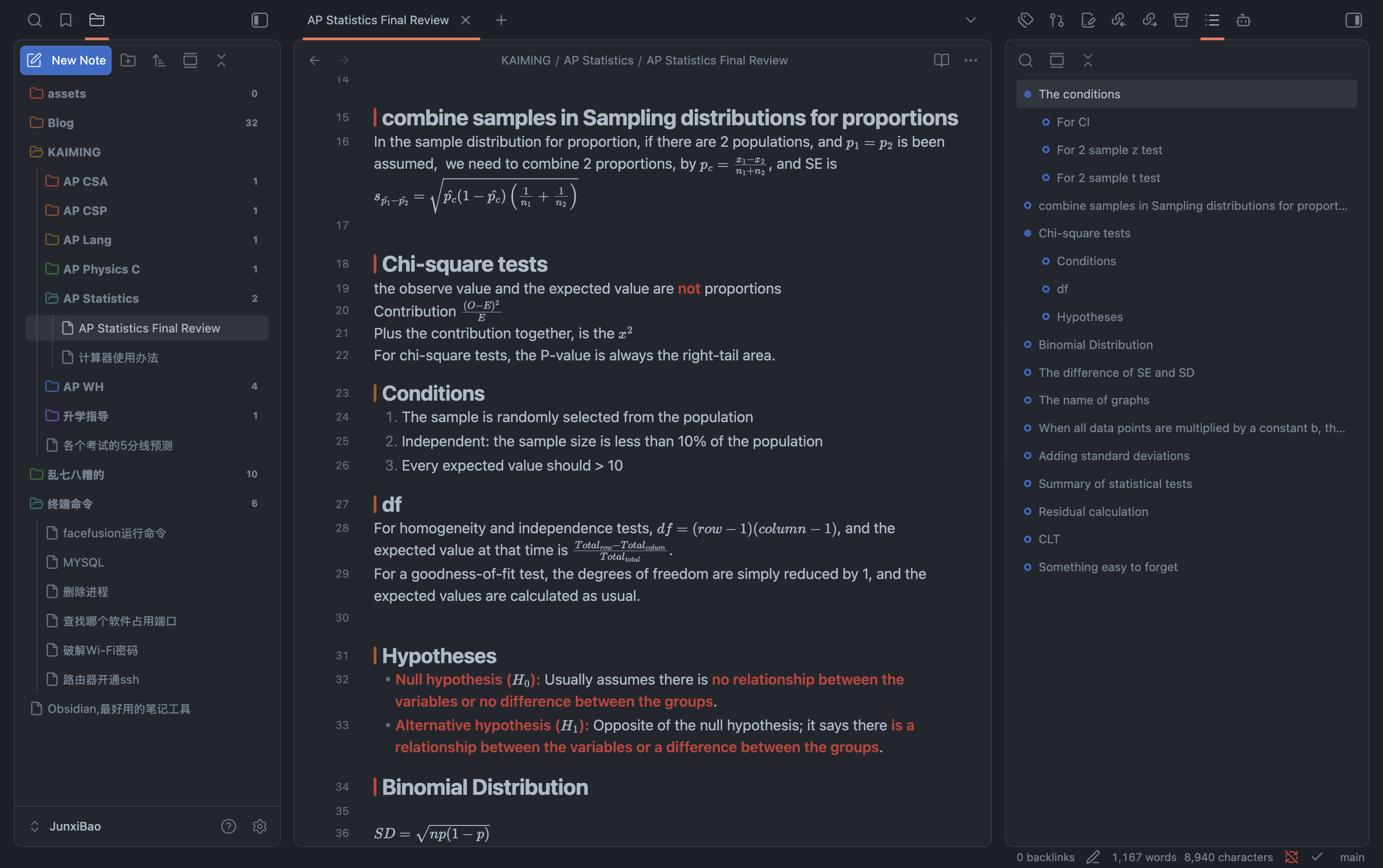
The theme I mainly use right now is Border. It won an Obsidian community award in 2023, and its overall design is very pleasant to look at. It also offers rich customization options, and its animations are quite polished. But for me, the most important feature is that it supports different colors for headings at different levels, which is almost a must-have in my workflow.
Primary
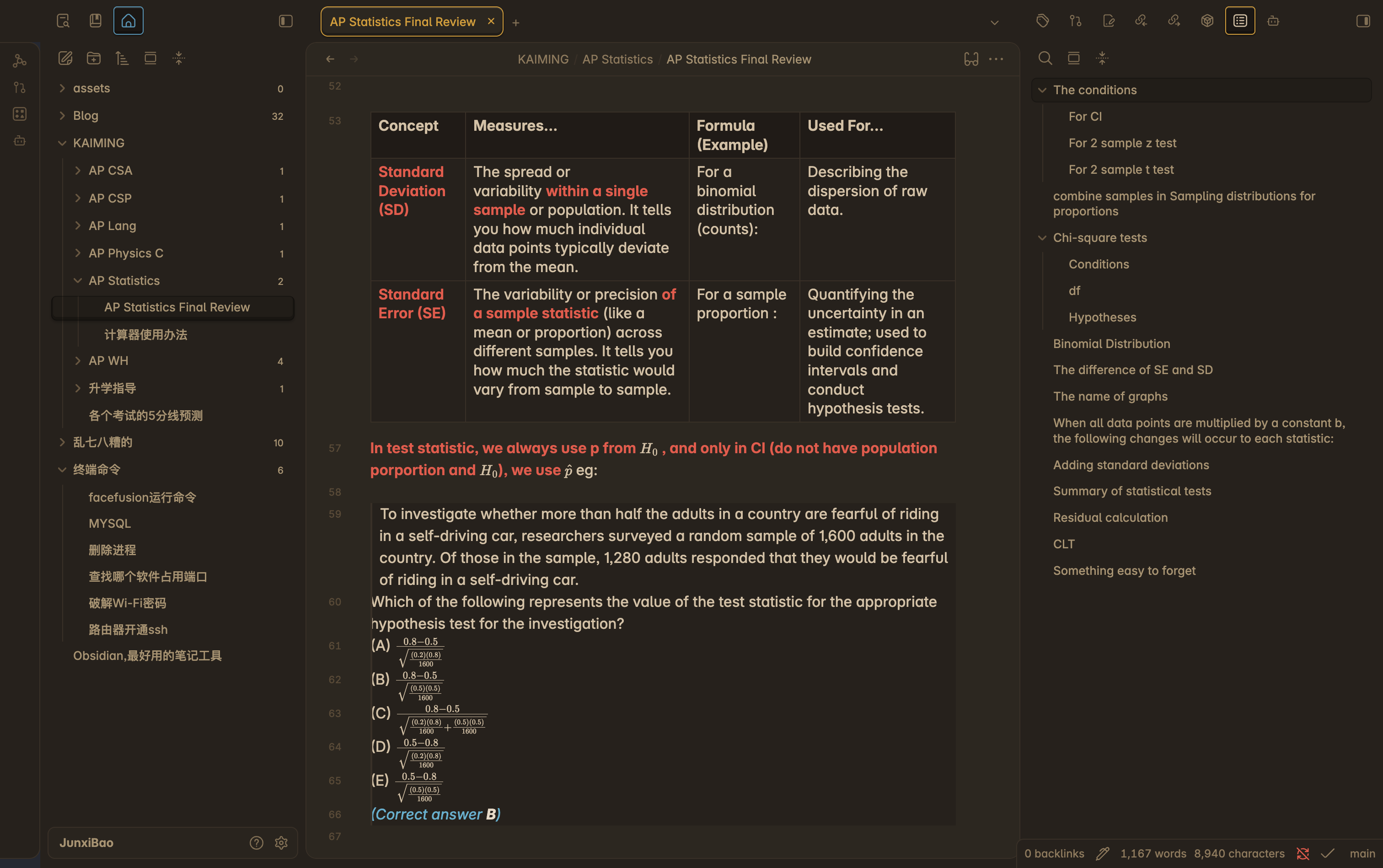
Primary is another theme that I really like. Its default color scheme is exactly my style, with a yellow tone that reminds me a lot of Vim. Its animation transitions are also incredibly smooth, honestly even better than Border in that regard. The reason I do not use it as my main theme is simple: it does not support color distinctions between different heading levels, and that happens to be very important to me.
The Key to Efficient STEM Notes: LaTeX Plugin
As I mentioned earlier, one of the main reasons I liked using Apple Notes with Apple Pencil was that it made writing formulas convenient. But in Obsidian, writing formulas is just as easy, arguably even easier.
First, Markdown itself supports LaTeX formulas. This means I can directly type formula code inside my notes and let Obsidian render it beautifully. For anyone who frequently records math-related content, this is already extremely useful.
What really elevated the experience for me, though, is Obsidian's plugin ecosystem. Through the plugin marketplace, I found a plugin that can almost be called a formula-input superpower: Latex Suite.
Latex Suite provides many highly efficient ways to type LaTeX. For example, it can automatically expand
mu into \mu, and turn a/b into \frac{a}{b}. These
may sound like small conveniences, but when you type formulas often, they significantly reduce
repetitive work and make the whole input process much smoother.
On top of that, it also supports formula preview. While typing LaTeX code, I can already see what the rendered formula will look like. This real-time feedback feels very close to WYSIWYG and makes writing formulas in Obsidian much more natural and efficient.
AI Assistant
Using AI to help with note-taking and note organization is, in my opinion, an excellent solution. The plugin I use is called Claudian. It is not yet available in Obsidian's community plugin marketplace, so you need to download and install it manually from GitHub.
I use it to connect to Codex on my computer, and I have installed several useful skills for it. For
example, there is obsidian-canvas-creator for generating mind maps,
obsidian-cli for using the official Obsidian CLI, and
obsidian-markdown for helping AI better understand and work with Obsidian-specific Markdown
syntax.
With these tools, AI has significantly improved my note-taking efficiency. I can directly ask AI to insert a new knowledge point into an existing note, or let it organize a large batch of unstructured files for me. A lot of repetitive, tedious, and time-consuming work can now be done far more efficiently.
Of course, Obsidian has far more to offer than what I have mentioned here. For me, it is not just a note-taking app, but a knowledge management system that I can continuously refine and evolve over time.